How to Share a Custom Map with a Link (No Account, No File Upload)
·3 min·View as Markdown
TagsWorld Map
Written byJordan Hale — Writer, Oh My Maps!
Contents
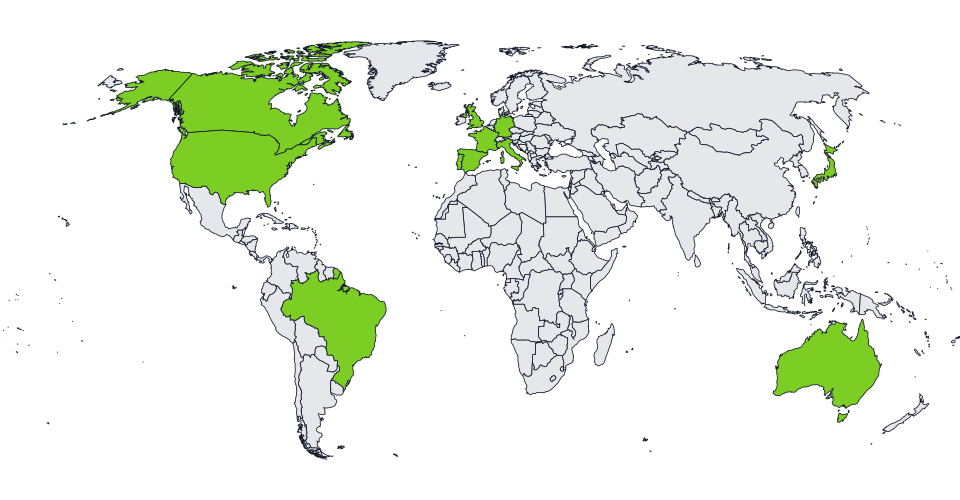
The usual way to hand someone a map you built online is to export an image and attach it somewhere, which is fine for a finished map but awkward for a work in progress: the recipient gets a picture, not something they can keep editing. Oh My Maps! has a Share button that solves the other case: a link that reproduces the whole editable map.
What actually happens when you click Share
The entire map document, every painted country, every colour, the legend,
the labels, the projection, is compressed and encoded directly into the URL
itself, in the part after the #. Clicking Share copies that link to your
clipboard and confirms it right on the button, no dialog, no extra step.
That link is the map. There is no server storing a copy of it anywhere and no database row that could later go missing, get deleted, or be looked up by anyone else. Whoever opens the link decodes the same document your browser just encoded, entirely on their own device.
Try it now. Paint a few countries, click Share, and open the link in a new tab to see it reproduce instantly.
Open the editorWhy nothing is uploaded
This matters for two practical reasons, not just as a privacy talking point:
- Nothing about your map ever leaves your browser except the link itself. There is no account to create, no file to upload, and nothing sitting on a server that could be exposed later. If your map contains anything you would rather not put on a third-party server, a URL you generate and control is a meaningfully different situation from uploading a file.
- The link keeps working with no dependency on the service staying up in any particular way. Because the map lives inside the link rather than behind an id that points at server-side storage, there is nothing that can expire, get garbage-collected, or 404.
How big a link gets
A share link scales with how much of the map you have touched, not with the size of the dataset. A map with ten painted countries produces a link around 800 characters, well within what every browser and messaging app accepts without truncating. The worst realistic case, all 235 countries painted with data values attached, comes in under 4.5 KB, still comfortably inside the practical size limits browsers place on a URL. For a normal travel map, election map or a handful of highlighted countries, link length is not something you need to think about at all.
Opening a shared link
When you open someone’s shared map, it replaces whatever you had open,
counted as a single step in the undo history: Ctrl+Z right after opening
one takes you back to whatever was on your screen before, which is a useful
safety net if you followed a link by mistake while working on something of
your own. The link is then cleared from the address bar, so refreshing the
page does not reload the same shared map over and over.
When to use Share versus Save
Share is for handing a map to someone else, or for keeping a link
yourself somewhere convenient (a note, a chat with yourself) without
downloading a file. Save, which writes a .json file to your device, is
better for a map you plan to keep working on across sessions on your own
machine, since it does not depend on a link surviving in whatever you pasted
it into. The two are not exclusive: nothing stops you from doing both for a
map that matters.
Next steps
- The full tour of the editor covers Share alongside every other export and save option.
- How to make a map of countries you’ve visited is a common case where sharing a link, rather than exporting an image, is the more useful output, since the recipient can keep exploring the map.
Ready to make yours? Oh My Maps! is free, runs in the browser and needs no sign-up. Your map is saved locally as you work, and exports carry no watermark.
Open the editor